

I happily used SMS 2FA verification for years. It gets a bad rap, SMS 2FA. It has vulnerabilities and issues — SIM swapping, SS7 exploits, and so on — and I’ve definitely had a moment or two where the message wouldn’t arrive, which is immensely frustrating.
All that is changing, though. Or should I say, has already changed, because passkeys are already waiting for you on your device — you just need to set them up.
Time’s up for your browser password manager.
The issues with SMS 2FA login codes are undeniable, and I say this as someone who used them all the time alongside my authenticator apps.
Their replacement, passkeys, have been rolling out for years now, with Google, Apple, Microsoft, and most other major tech companies and platforms now integrating them in some way.
So, when I say you’ve probably used a passkey without realizing, it’s not a techy stab in the dark. Chances are you’ve been using one for years, but it wasn’t specifically called a “passkey.”
That’s in part because of how passkeys work. When you create a passkey, your device generates two cryptographic keys — one stays on your device, and the other goes to the service you’re logging into. When you log in, they’re matched. Your biometric, such as your fingerprint, face, or whatever your phone uses, unlocks the key on your end. Nothing sensitive goes across the network, and the code that would’ve landed in your texts never exists. It’s also really hard to lose your finger or your face.
That change is what makes passkeys so wonderful and secure compared to SMS 2FA login codes. Because nothing is ever sent (or even generated), there is no way for the data to be intercepted.
The good news is your phone is already set up to handle this. On Android, Google Password Manager stores and syncs your passkeys across any device signed into your Google account, with no extra apps or setup required. iPhone does the same through iCloud Keychain, with both services syncing across your signed-in devices.
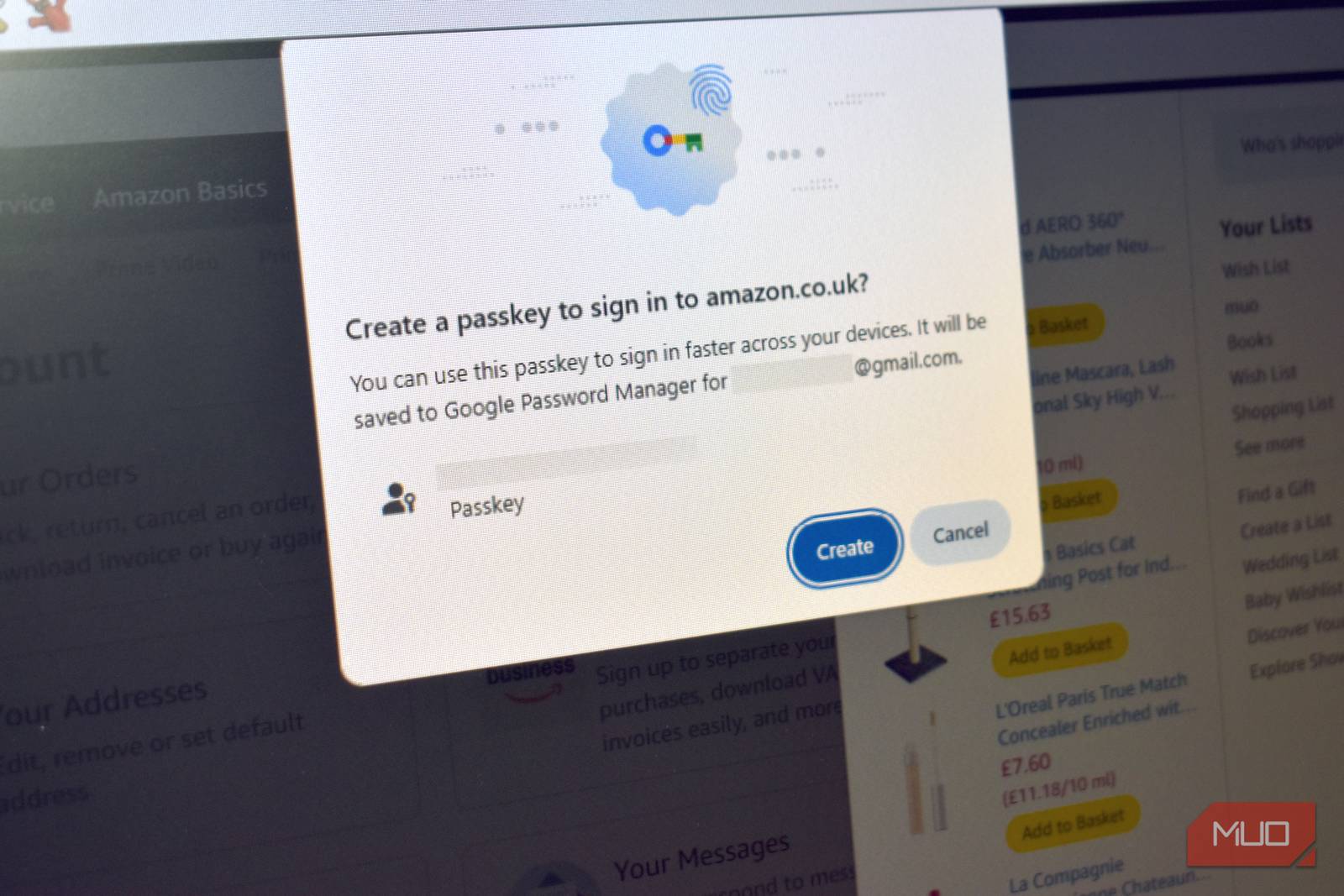
Now, the steps on Android devices vary because there are so many different flavors, but the passkey flow is generally the same across the board. The passkey option typically appears when you’re making a new password, and in some cases, it’ll appear on sites you’ve already made one for, such as Amazon or eBay.
Head to the website or app you want to set up a passkey for, then head into the security settings and look for a passkey option. Select it, follow the prompts, and save your passkey to the account and your password manager.
You’ll need to verify with your fingerprint, face, or PIN, and that’s basically the whole process.
It’s a near-identical process on iPhone. Head to the same security settings on whichever service you’re setting up, select the passkey option, and Face ID or Touch ID handles the verification. iCloud Keychain saves it and syncs it across your devices.
Like Android, on iPhone, if you’re trying to use a device that doesn’t have your passkey saved, you’ll get a prompt to scan a QR code with your phone. It uses Bluetooth to confirm you’re really there, then authenticates through your device without ever sharing the private encryption key.
The good news about passkeys is that you’re not locked into Google Password Manager or iCloud Keychain. If you use Proton Pass, Bitwarden, 1Password, or similar, you’re covered. Most third-party password managers support passkeys, and if the one you’re using doesn’t, you should switch to one that does.
Using a passkey with your password manager is similar to the Android and iOS processes. You just need to make sure that the password manager is set as the default autofill provider on your device.
SMS 2FA login codes have always been a compromise. They’re less secure than an authenticator app, but more secure than having just a password. To many, they’re an acceptable level of in-between security, and for the most part, SMS 2FA login does the job.
Passkeys are just better, all around. They make your accounts and devices much more secure, and while setting them up can feel like a bit of effort, it doesn’t take long to update your accounts as you access them.
In many cases, you’ll even be prompted to create one when you next log in, making it even easier.
What I would say is that you don’t need to go and audit every account you have in one afternoon. That’s where the feeling of additional effort kicks in, very understandably. But you can take the same approach as me and many others: update when the account comes up, and keep your security ticking over nicely.
If you want to boost your account security, I strongly recommend picking up a security key.
We want to hear from you. Share your perspective in the comments below, and please keep the conversation respectful.
Your comment has not been saved
This space is open for discussion.
Be the first to share your thoughts.