
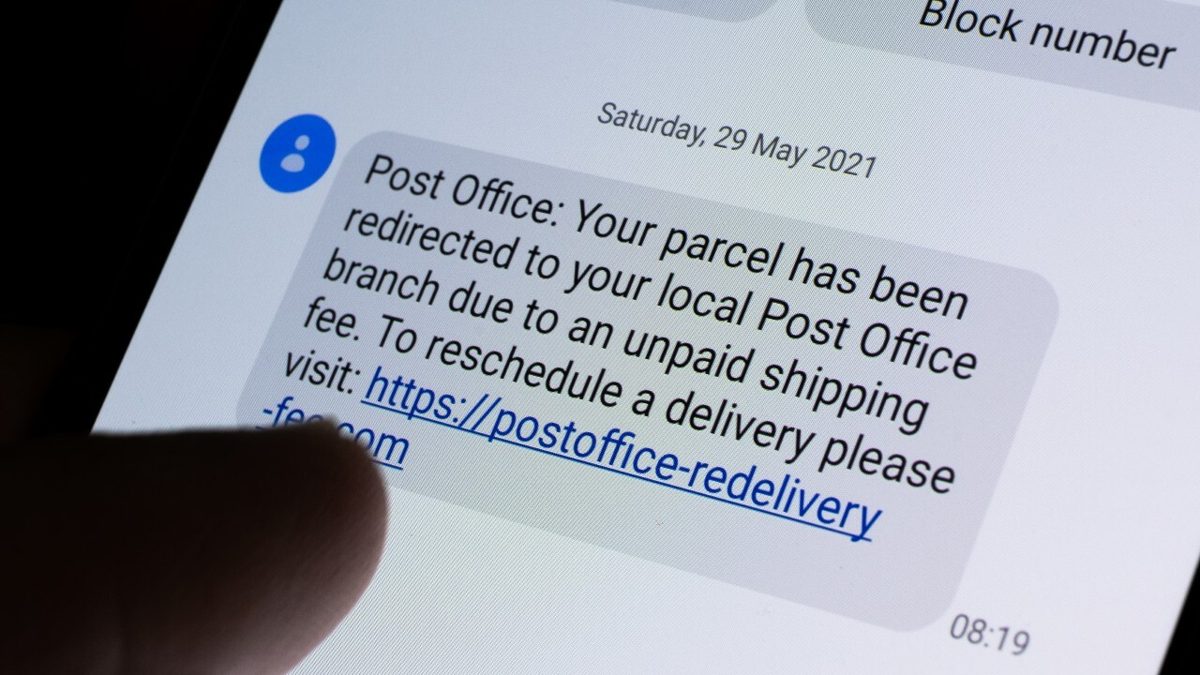

You hear the sound of an incoming text message and excitedly check your phone. But it’s just a junk message sent to you by a spammer trying to con you into tapping a link, opening an attachment, calling a number, or installing malware. Robotexts and spam messages are an unpleasant fact, just like robocalls and junk email. They may not be as invasive as a spam call, since you can largely ignore them, but that doesn’t make them harmless.
Some phone plans may charge you for incoming text messages, and smishing (SMS phishing) attacks can be even more dangerous if you’re not careful. However, you don’t have to put up with them. Just as you can fight against robocalls and unwanted email, you can block and stop robotexts with the right tricks and tools.
(Editor’s Note: If you’re receiving unwanted spam calls, there are steps you can take to block them, too.)
First, if you receive a spam text, do not interact with the message. If you click a link or attachment in a spam message, it could trigger malware that infects your phone. You also don’t want to respond. Many legitimate robotexts include an option to text STOP to tell the company to remove you from their distribution list, but that doesn’t work with scammers.
In fact, by responding to a spam message, you’re only confirming to the scammer that your number is valid—this is the goal for those texts that were meant for someone else. From there, your phone number may be disseminated to other scammers, increasing your odds of getting more junk messages. So, unless you know the text came from a legitimate company that honors such requests, you’re better off not responding at all.
You can block a number that’s been sending you junk messages. However, this is only helpful if the same number keeps sending the texts. Spammers typically spoof or switch phone numbers, so even if you block the number, you can still receive messages from the same spammer using a different number. Still, it’s worth trying.
On an iPhone, open the text message you received. Tap the phone number at the top of the screen and then tap the Info button. At the next screen, select Block this Caller > Block Contact to confirm.
On an Android phone, open the text and tap the three-dot icon in the upper right. The steps then vary based on your phone and OS version. Either select the Block number option or select Details > Block & report spam.
You can report a robotext to your mobile carrier by forwarding it to a specific number. To do this on an iPhone, press down on the offending message. Tap More and then tap the right arrow to forward it as a new text. To do this on an Android phone, press down on the message and tap the three-dot icon at the top, then select Forward.
From here, send the text to the number 7726, which spells out SPAM. The number works for AT&T, Verizon Wireless, and T-Mobile customers alike. This information will then be used to try and block future spam messages.
On an Android phone, you can disable all potential spam messages from Google’s Messages app. Tap the profile icon in the upper right of the app and select Messages Settings > Spam protection. Turn on the Enable spam protection switch, and your phone will now alert you if an incoming message is suspected of being spam.
On an iPhone, go to Settings > Messages and then turn on the switch next to Filter Unknown Senders. This will filter messages from unknown senders into their own folder within the Apple Messages app.
The top US mobile carriers offer their own filtering and blocking tools for subscribers. For the most part, they’re geared more toward spam phone calls, but they can also block numbers that attempt to deliver spam text messages.
Verizon’s Call Filter blocks robocalls and spam messages. T-Mobile offers Scam Shield to detect, block, and mislead spam and scam callers. It also includes a caller ID feature for numbers not already in your contact list. AT&T’s ActiveArmor can now block texts that are deemed to be sent from email addresses, a major source of spam. All three carriers also have backend technology that identifies and blocks spam messages in much the same way email has a spam folder.
If you need more robust robotext filtering than what is mentioned above, you may want to check out a third-party app. Options like SpamHound, SMS Spam Stopper, RoboKiller, and TextKiller can give you more to block spammers.
SpamHound: SpamHound is a free iOS app that works to supplement Apple’s built-in Messages app to filter out SMS spam based on keywords and other factors. To fine-tune its powers of deduction, you’re encouraged to create blocklist and allowlist rules for what you want to block or allow.
SMS Spam Stopper: Available as a paid iOS app, SMS Spam Stopper uses artificial intelligence to detect spam messages by comparing incoming messages to the SMS signatures of 5,000 spam messages in its database. You can also use the app to block texts from unknown numbers, set up allowed and blocked words, and block phone numbers. Detected spam is then banished to the Unknown & Junk section of Apple Messages, where you can review them.
RoboKiller: Designed for iOS and Android, RoboKiller analyzes the phone number, content, and attachments of incoming messages. To set up spam blocking, go to Settings > SMS Spam Recognition (Android) or Settings > Messages > Unknown & Spam > RoboKiller (iOS). Messages deemed to be spam are moved to the Junk folder in Messages. Though it can’t stop everything, you’ll be alerted if a text is tagged as spam so you can determine whether to respond or ignore.
TextKiller: RoboKiller also offers the TextKiller iOS app, which is designed to block text messages. By default, the app looks for certain words, terms, and other tip-offs to tell which texts are spam. You can assist it by labeling spam messages, so it learns from your actions. You can also set up filters by adding specific phone numbers and blocking keywords. Any messages identified as spam are stored in a junk tab. A premium edition unlocks more functionality for $5.99/month or $79.99/year.
Read Our Editorial Mission Statement and Testing Methodologies.
My Experience
I’ve been working for PCMag since early 2016 writing tutorials, how-to pieces, and other articles on consumer technology. Beyond PCMag, I’ve written news stories and tutorials for a variety of other websites and publications, including CNET, ZDNet, TechRepublic, Macworld, PC World, Time, US News & World Report, and AARP Magazine. I spent seven years writing breaking news for CNET as one of the site’s East Coast reporters. I’ve also written two books for Wiley & Sons—Windows 8: Five Minutes at a Time and Teach Yourself Visually LinkedIn.
My Areas of Expertise
I’ve used Windows, Office, and other Microsoft products for years so I’m well versed in that world. I also know the Mac quite well. I’m always working with iOS, iPadOS, watchOS, and Android on my various mobile devices. And these days, I write a lot about AI, so that’s become another key area for me.
The Tech I Use
My wife always jokes about all the tech products we have around the house, but I manage to put them to good use for my articles. I like Lenovo computers, so I own a couple of Lenovo desktops and several laptops. I have three MacBooks and a Mac mini. For my mobile life and work, I use an iPhone 16 Pro, iPad Pro, and iPad mini as well as an Apple Watch. But since I write about Android, I own several Android phones and tablets. Like any tech person, I have a cabinet full of cables, wires, and assorted mysterious gadgets. And when it’s time to take a break from writing, I have an old Xbox 360 and Nintendo Wii, both of which I use for exercise and fitness games.
I’ve been working for PCMag since early 2016 writing tutorials, how-to pieces, and other articles on consumer technology. Beyond PCMag, I’ve written news stories and tutorials for a variety of other websites and publications, including CNET, ZDNet, TechRepublic, Macworld, PC World, Time, US News & World Report, and AARP Magazine. I spent seven years writing breaking news for CNET as one of the site’s East Coast reporters. I’ve also written two books for Wiley & Sons—Windows 8: Five Minutes at a Time and Teach Yourself Visually LinkedIn.
I’ve used Windows, Office, and other Microsoft products for years so I’m well versed in that world. I also know the Mac quite well. I’m always working with iOS, iPadOS, watchOS, and Android on my various mobile devices. And these days, I write a lot about AI, so that’s become another key area for me.
My wife always jokes about all the tech products we have around the house, but I manage to put them to good use for my articles. I like Lenovo computers, so I own a couple of Lenovo desktops and several laptops. I have three MacBooks and a Mac mini. For my mobile life and work, I use an iPhone 16 Pro, iPad Pro, and iPad mini as well as an Apple Watch. But since I write about Android, I own several Android phones and tablets. Like any tech person, I have a cabinet full of cables, wires, and assorted mysterious gadgets. And when it’s time to take a break from writing, I have an old Xbox 360 and Nintendo Wii, both of which I use for exercise and fitness games.
Read full bio
PCMag.com is a leading authority on technology, delivering lab-based, independent reviews of the latest products and services. Our expert industry analysis and practical solutions help you make better buying decisions and get more from technology.
PCMag.com and PC Magazine are among the federally registered trademarks of Ziff Davis, LLC and may not be used by third parties without explicit permission. The display of third-party trademarks and trade names on this site does not necessarily indicate any affiliation or the endorsement of PCMag. If you click an affiliate link and buy a product or service, we may be paid a fee by that merchant. As an Amazon Associate, we earn from qualifying purchases.