
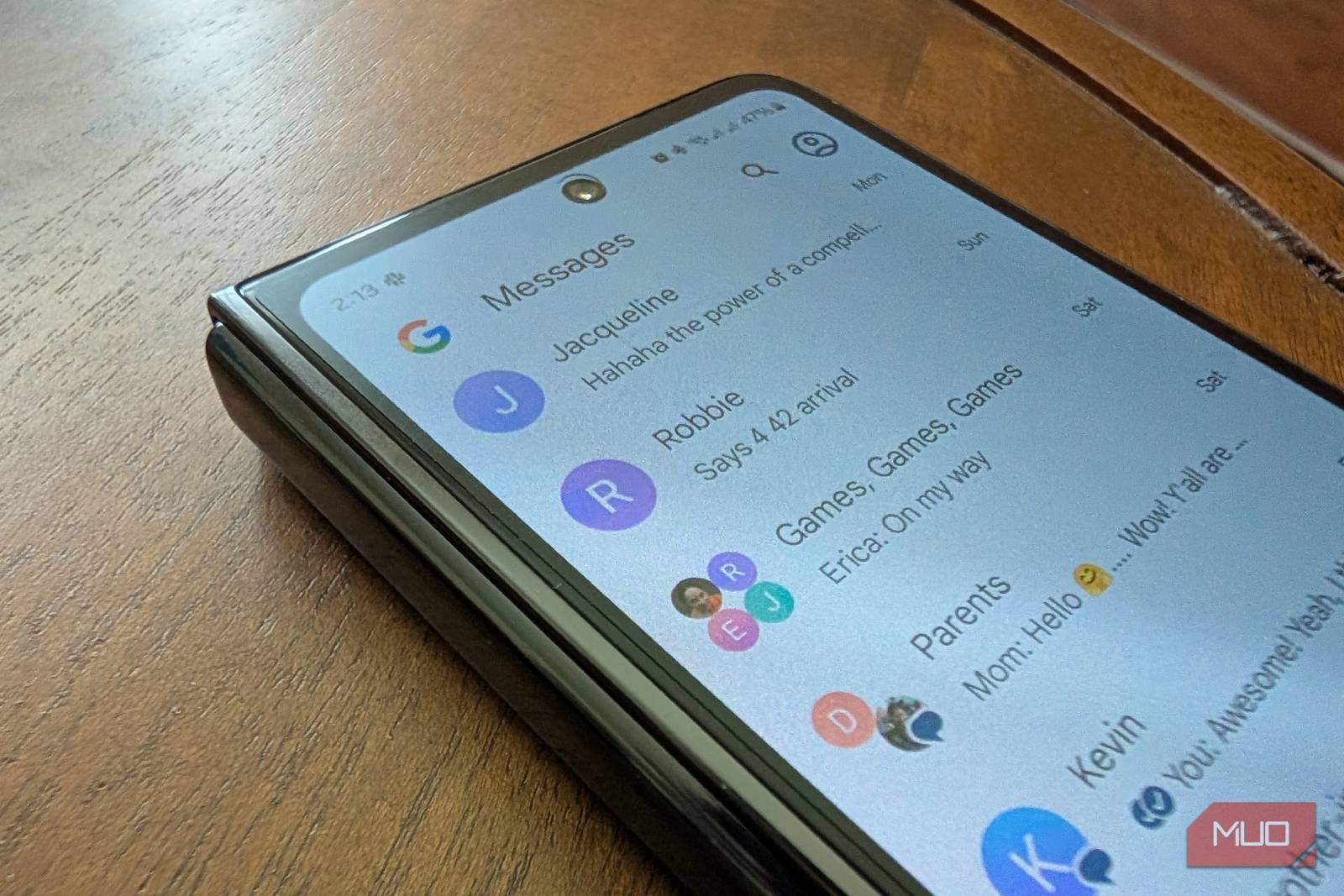

I was preparing to reset my phone when I made a comfortable assumption: once I signed back into Google Messages, my conversations would return with everything else attached to my Google account. The app has RCS, profile sharing, and web pairing, so it looks like a conventional synced messenger.
That is not how its message history works. Signing in to Google Messages does not download a complete archive of your conversations. The app reads messages stored on the phone, while recovery depends mainly on Android’s device-backup system. The important control is outside of Google Messages.
Only one is a true safety net.
Google Messages can look like a fully synchronized messaging service. Several of the Google Messages features I rely on, including RCS and device pairing, depend on your Google account or connecting the phone to another screen. However, those features do not mean Google maintains a Gmail-like archive that reappears whenever you sign in.
It reads conversations stored in the phone’s local messaging database. Setting it as the default SMS app allows it to display the device’s existing conversations and handle future SMS, MMS, and RCS messages, but signing in to the app does not restore that database on its own.
Pairing the app with Google Messages for web does not create an independent browser archive either. The browser encrypts and caches recent threads, contacts, and settings, but it still reflects the phone’s message history. It should not be treated as a backup that will survive a reset or the loss of the phone.
RCS can make that difference easy to overlook because its modern messaging features include typing indicators, read receipts, improved group chats, and higher-quality media sent over Wi-Fi or mobile data. Enabling it only activates those messaging features. It does not turn on Android backup or guarantee that your full conversation history will appear when you move to another phone.
Android may have enabled device backup while you were originally setting up the phone, particularly if you restored settings from an older device. Its status can still vary according to your setup choices, Android version, manufacturer software, selected Google account, and available cloud storage. Android backups still have important limitations, including how clearly they appear and let you control individual categories. Opening the backup screen yourself is safer than assuming everything is protected.
On a Google Pixel, open Settings -> Google services and tap Manage backup. The Backup page shows whether backup is active, when Other device data was last saved, and how much storage the backup uses. Open Other device data, then make sure Back up other device data is enabled.
The Google account receiving the backup appears on this page, so confirm that it is the account you plan to use on the replacement phone. Under Device data, check that SMS & MMS messages is toggled on. You may not see a separate RCS option. When Google Messages is your messaging app, supported RCS history is included with the device backup rather than presented through another visible switch.
Return to the main Backup page and tap Back up now before resetting or replacing the phone. The button starts the process, but it does not mean the upload has already finished. Wait until Other device data displays a recent backup time or completed status before erasing anything. Pixel normally backs up this information automatically while the phone is idle, but a manual backup gives you a fresher recovery point before a device change.
Samsung uses the same Google backup system, although the route is slightly different and sits beside Samsung Cloud. Open Settings -> Accounts and backup, find the Google Drive section, and tap Back up data underneath it. Do not choose the similarly named option under Samsung Cloud unless you intentionally want to use Samsung’s separate backup service.
On the Google backup page, open Other device data and confirm the Google account shown. Make sure the main device-data backup control is enabled, and check that SMS & MMS messages is included. Return to the previous page and tap Back up now.
Scroll farther down, and you may see Google Messages listed under App data with No data backed up, even though SMS & MMS messages is enabled above. That label refers to the app’s own settings and data, not the phone’s separate messaging database. The SMS & MMS messages entry is the important one because it confirms that your conversation history is included in the backup.
A fresh device backup can take up to 24 hours. Keep the phone charged and connected, then wait for the backup time or status to update before beginning a factory reset or handing the old device over.
The safest place to restore messages is while you set up the factory reset or new Android phone. Sign in with the same Google account, select the backup from your previous device when prompted, and choose the data categories you want to restore.
The receiving phone should run the same Android version as the old phone or a newer release. A backup created on a newer Android version cannot be fully restored to a phone running an older one, so check both devices before relying on cloud recovery.
Pixel 9 and later can also restore cloud data after setup through Settings -> Accounts & backup -> Android Switch -> Start. However, this post-setup process can restore from only one previous device. Restoring from a different source later requires resetting the Pixel first, so it is still worth choosing the correct backup during initial setup.
Restoration may continue for up to 24 hours. Messages, apps, and other device data can keep appearing after the home screen becomes usable, so an incomplete conversation list immediately after setup does not necessarily mean the restore failed.
Android device backup is built for recovery and migration rather than casual browsing. In a browser, you can see the backed-up device and its latest backup date in Google Drive under Storage -> Backups, although individual conversations cannot be opened there like files in a folder.
These backups should not be treated as permanent archives either. Turning off device backup deletes the stored device backup, apart from content already saved separately in Google Photos. Non-photo backup data is also deleted after the device has remained unused for 57 days.
Android backup works well as a safety net, though it should not be treated as a permanent message archive. Keep your old phone until you have confirmed that important conversations and attachments appeared correctly on the replacement. Verifying your backup before resetting is one of the most important things to do before selling or surrendering an old Android phone.
For especially valuable exchanges, consider keeping an additional copy through screenshots, forwarding, or a reputable export method. SMS and call logs belong among the most important data to back up because Android’s normal device backup is designed for restoration rather than opening, searching, or preserving individual conversations indefinitely.
For everyday protection, verify the correct Google account, confirm that SMS and MMS are included, tap Back up now, and wait for the backup status to update before resetting anything. Google Messages could make this safeguard easier to find, but for now, the setting that protects your conversations remains tucked away in Android rather than inside the messaging app itself.
We want to hear from you. Share your perspective in the comments below, and please keep the conversation respectful.
Your comment has not been saved
This space is open for discussion.
Be the first to share your thoughts.
The best of MakeUseOf, directly in your inbox.
By subscribing, you agree to receive newsletter and marketing emails, and accept our Terms of Use and Privacy Policy. You can unsubscribe anytime.