
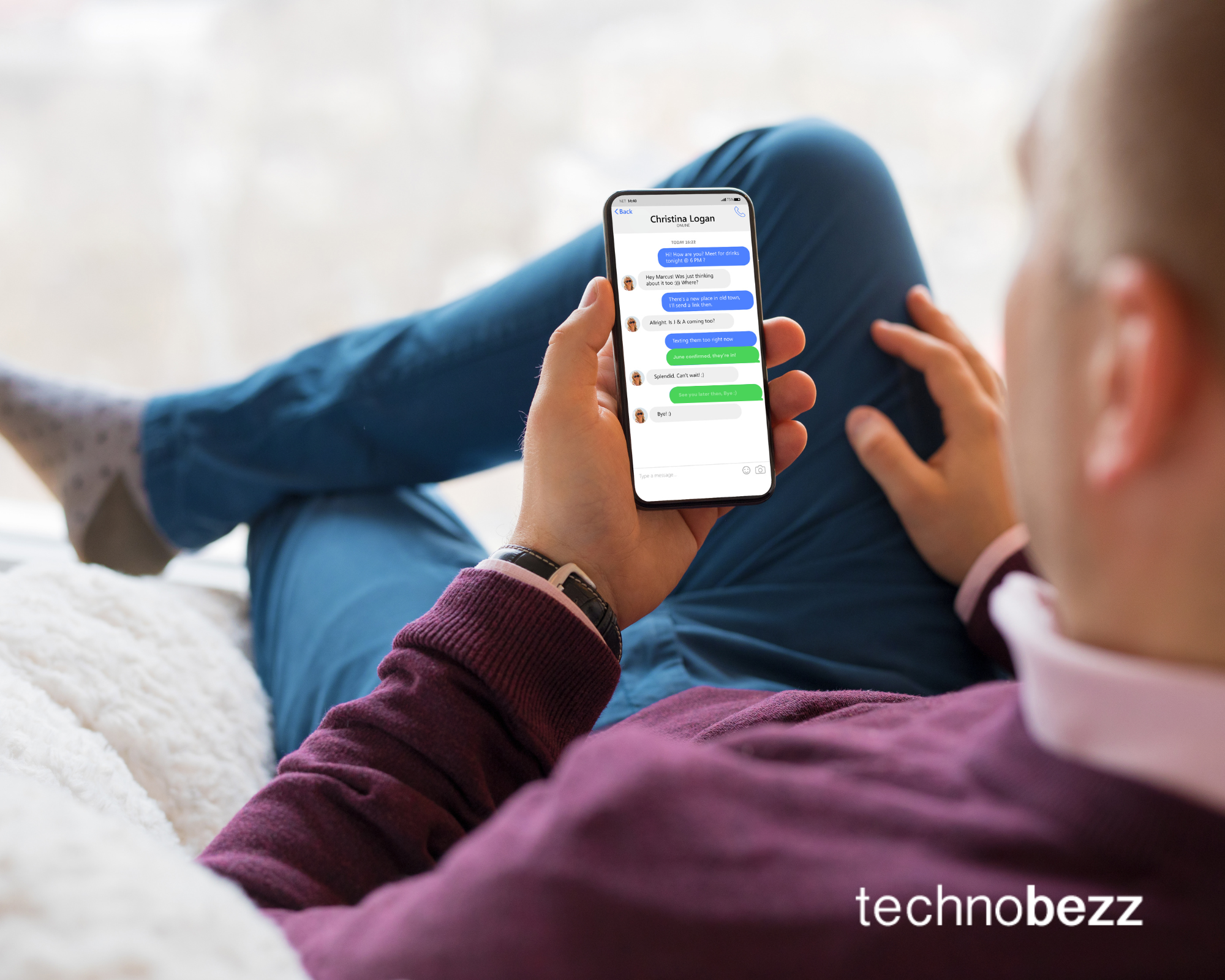

If you've ever sent a text from your iPhone and noticed the message bubble turned green instead of blue, you're not alone.
Chevaugn Powell
Technology Editor
Get tech news that matters delivered weekly. Join 50,000+ readers.
If you’ve ever sent a text from your iPhone and noticed the message bubble turned green instead of blue, you’re not alone. This color difference actually tells you important information about how your message was sent and received.
Read more – iPhone Not Receiving Texts From Android Try These Solutions
The blue bubbles indicate you’re sending an iMessage. iMessages are Apple’s messaging service that uses Wi-Fi or cellular data to send messages over the internet. These messages are encrypted and can include photos, videos, and other rich content.
Green bubbles mean you’re sending a standard SMS or MMS message. These messages go through your cellular carrier using your text messaging plan and work with any mobile phone, not just Apple devices.
If you’re texting someone who doesn’t use an iPhone or other Apple device (like an iPad or Mac), your messages will appear green. iMessages only work between Apple devices.
When iMessage is disabled on your device, all messages default to SMS/MMS and appear green. To check this setting:
iMessages require an active internet connection through Wi-Fi or cellular data. If either you or the recipient doesn’t have internet access, messages will send as SMS/MMS.
Read more – Why Won’t My iPhone Connect to WiFi – 14 Ways to Fix It
To troubleshoot connection issues:
Occasionally, Apple’s iMessage servers experience outages or technical problems. When this happens, your iPhone automatically switches to SMS/MMS to ensure your messages get delivered.
If the person you’re texting has disabled iMessage on their device, your messages to them will appear green.
When a group chat includes even one person without an Apple device, the entire conversation defaults to SMS/MMS and all messages appear green.
When setting up a new iPhone or switching devices, your iMessage settings may not transfer correctly. Here’s how to ensure proper setup:
Incorrect time zone settings can sometimes interfere with iMessage. Make sure your date and time are set to automatic in Settings > General > Date & Time.
If you use multiple SIM cards, ensure the correct one is selected for iMessage in Settings > Cellular.
If basic fixes don’t work, try signing out of your Apple ID and back in:
If you’re experiencing persistent connection issues:
While blue iMessages offer more features, green SMS/MMS messages have their advantages:
Read more – How To Fix No Service On iPhone
Understanding why your messages turn green helps you troubleshoot issues and ensures your texts always get through, regardless of the recipient’s device or your connection status.
Help others discover this content
10 min read
3 min read
4 min read
3 min read
5 min read
4 min read
3 min read
5 min read
4 min read
5 min read
4 min read
3 min read
Join 50,000+ people who get our weekly email with the tech news that actually matters.
No spam, no BS. Unsubscribe whenever you want.
We test gadgets, dig into tech stories, and tell you what's actually worth your time and money.
© 2025 Technobezz. All rights reserved.
Made by people who actually use this stuff