

By D. Griffin Jones •
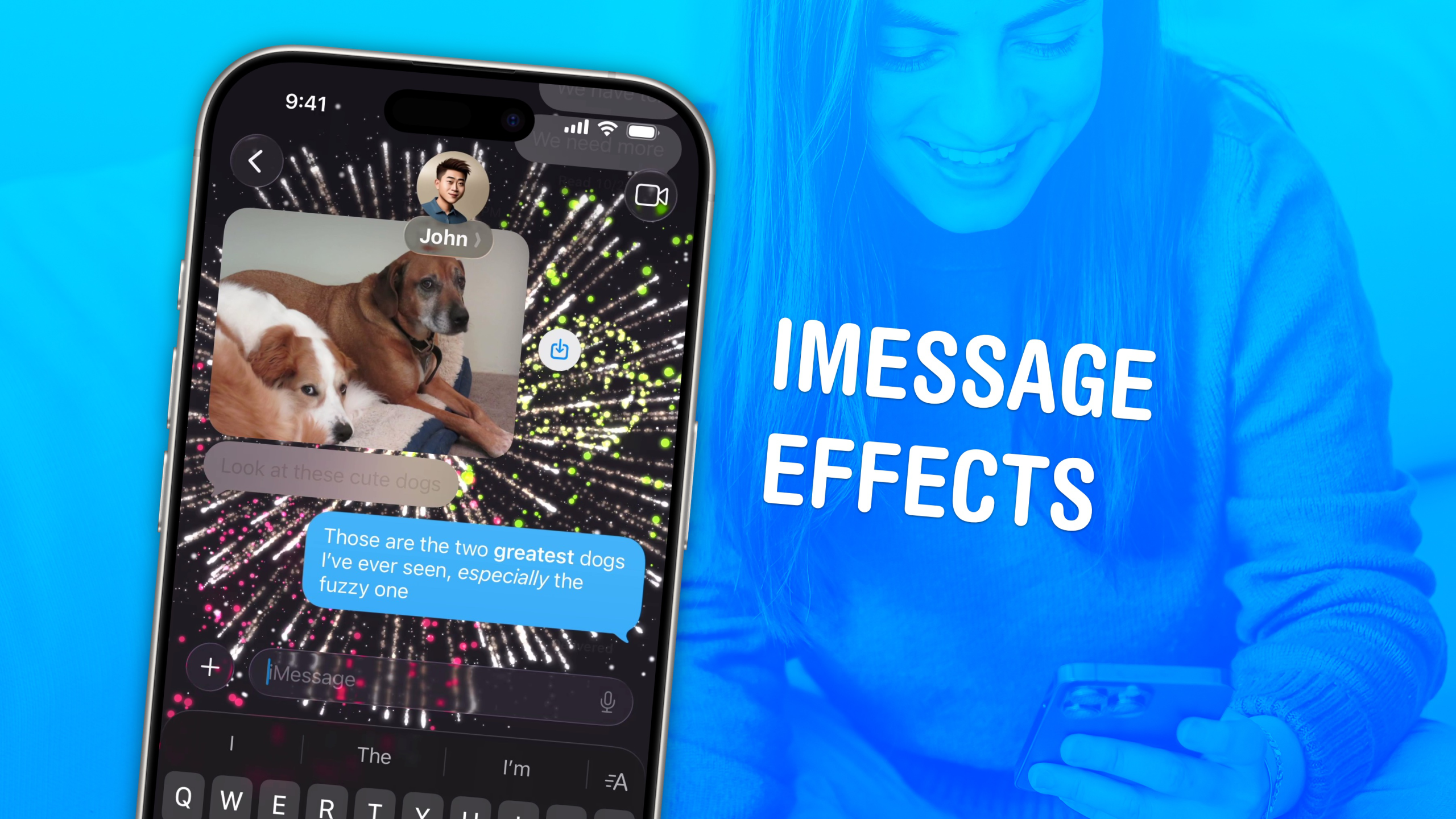
iMessage effects can add extra meaning, emotion and fun to your texting. In Apple’s Messages app, you can add bold, italics, underline and strikethrough text, just like in a formatted document. You can even choose from a bunch of cool, animated effects, including full-screen blasts of lasers, confetti and fireworks.
Apple’s text message effects can make quite an impression. You can make congratulations more bombastic (to rejoice in someone’s finest moments). Or, you can use formatting and effects to convey sarcasm, stress and sorrow more clearly.
These text effects are fun and incredibly useful. Keep reading below or watch our video.
Text messaging is incredibly prevalent these days — and can also be incredibly tricky. It’s all about achieving the proper tone.
Just as choosing a certain emoji (or creating the perfect Genmoji) can change the mood of a message, using these iMessage effects can alter the way a text lands. Employed properly, they can make a happy message more exciting or lighten the tone of a text that the receiver otherwise might misconstrue.
In short, iMessage effects can add much more meaning, emotion and fun to your texting.
The only real drawback is that, since they only work with iMessages, they only work on Apple devices (iPhone, iPad and Mac) running relatively recent operating systems. As Apple says, “To send and receive messages with text formatting or text effects, you and your recipients must be using iMessage with macOS 15, iOS 18, iPadOS 18, watchOS 11, visionOS 2, or later. Messages appear in plain text when sent to devices with earlier (or other) operating systems.”
Ready to jazz up an iMessage? Open the Messages app on your iPhone. (These work similarly on iPad and Mac.) In the toolbar above your iPhone’s keyboard, you’ll see a Text Effects button on the right. Tap on that to open the menu of options for formatting text.
Along the top, you’ll see the classic formatting options of bold, italicize, underline and strikethrough. Tap and drag to select the text you want to format; tap one or more of these options to apply the format you want.
On a Mac, you can use the standard ⌘B, ⌘I and ⌘U to apply these. Strikethrough is available in the Format menu in the menu bar, or in the context (right-click) menu.
In the same Text Effects menu, below the classic options, you’ll see various animated text effects. They are: big, small, shake, nod, explode, ripple, bloom and every coffee fiend’s favorite — jitter.
You can apply these to your whole text message, or to specific words in it. You can even apply multiple effects to different words in the same message by selecting different words or portions. But, understandably, you can’t combine effects on the same selection — you can’t make words both big and small. That would be silly.
On a Mac, you can find these options in the Format menu in the menu bar — although they’re not as fun and animated as they are on iOS.
And it’s not just text you can alter. You can employ other animations and iMessage effects so you really send a message. After writing your text, tap and hold the Send button to bring up a special effects menu:
Tap to select an effect, then tap the Send button to send the message with that effect. If you change your mind, tap × (Cancel Effect) to close the menu.
Apple also cooked up full-screen animations you can use when sending an iMessage. At the top of the screen, tap the Screen tab to try them out. Swipe left and right to browse through all the effects:
Tap Send to send the message with the chosen effect, or tap × (Cancel Effect) to close the menu.
We originally published this article on iMessage effects on February 15, 2025. We updated it with the latest information on July 4, 2025, and April 21, 2026.
D. Griffin Jones is a writer, podcaster and video producer for Cult of Mac. Griffin has been a passionate computer enthusiast since 2002, when he got his first PC — but since getting a Mac in 2008, he hasn’t turned back. His skills in graphic and web design, along with video and podcast editing, are self-taught over 20+ years. Griffin has a bachelor’s degree in computer science and has written several (unpublished) apps for Mac and iOS. His collection of old computers is made up of 40+ desktops, laptops, PDAs and devices, dating back to the early ’80s. He brings all of these creative and technical skills, along with a deep knowledge of Apple history, into his work for Cult of Mac.
Your email address will not be published.
Our daily roundup of Apple news, reviews and how-tos. Plus the best Apple tweets, fun polls and inspiring Steve Jobs bons mots. Our readers say: “Love what you do” — Christi Cardenas. “Absolutely love the content!” — Harshita Arora. “Genuinely one of the highlights of my inbox” — Lee Barnett.
Copyright © 2026 – Cult of Mac. All rights reserved.
A daily blast of Apple news, reviews, how-tos and deals, delivered straight to your inbox.
By signing up, you agree to the Terms of Service and Privacy Policy.
Thank you! You’ll be hearing from us soon.
Thank you! You’ll be hearing from us soon.